
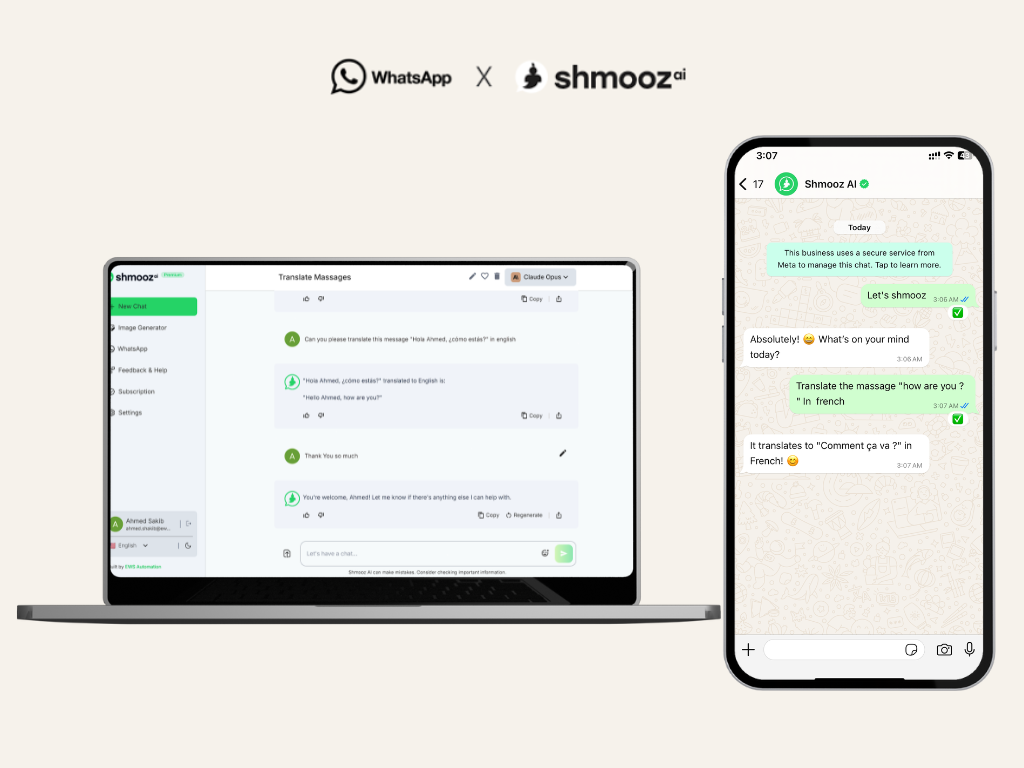
You do not install a translator in WhatsApp. When your phone has message translation, you long-press the text and tap Translate. If that line is missing, translation is not on this phone yet. Shmooz is a separate AI assistant you chat with on WhatsApp. It is not WhatsApp’s Translate button, and it is not Google Translate.
How to translate a message
WhatsApp Help, in “How to translate messages,” says translation is only on certain devices and may not be available yet. Keep WhatsApp updated. You can translate a message you sent or received in an individual or group chat. Locations, documents, contacts, stickers, and GIFs cannot be translated. You need a strong Wi-Fi or cellular connection, and enough storage for the language. Help also says this is not available on the WhatsApp Business app.
Android
- Tap and hold the message you want to translate.
- Tap More options (the three vertical dots), then Translate.
- Choose the language to translate to or from. A downloaded language is saved under Downloaded languages.
- Tap Continue, then Translate.
On Android, that same Translate screen can also translate all new messages in the chat. To see or clear a translation later, tap and hold the message, tap More options, then View translation or Remove translation.
iPhone
- Tap and hold the message you want to translate.
- Tap More…, then Translate.
- Choose the language to translate to or from. A new language asks you to download it. Downloaded languages are under Settings, Translate, Downloaded Languages.
The iPhone Help article does not describe translating every new message in the chat. WhatsApp’s 23 September 2025 blog said automatic translation of a whole chat thread was for Android, that the rollout was gradual, and that it started with six languages on Android (English, Spanish, Hindi, Portuguese, Russian, and Arabic) and 19 or more on iPhone, with more to follow. The Help Center does not publish one language list for every phone. If Translate is not on the menu, it is not on this device yet.
How to add, put, or install a translator
How to add a translator in WhatsApp, put one in, or install one, is the same question. There is nothing to install. Translate is the line on a text message, when this phone has it. A file that claims to add a translator to WhatsApp is not a WhatsApp feature. Do not install it. Updating the app does not guarantee the line appears. Google Translate stays a separate app. WhatsApp does not merge it into the chat.
Not available yet
If you long-press a text message and Translate is missing — More options on Android, More on iPhone — the feature is not on this account yet. There is no Settings path that adds it. On iPhone, Settings, Translate, Downloaded Languages only lists languages you already downloaded. It does not turn translation on when the menu never shows Translate.
If you still need the meaning, paste the message into Shmooz and name the language, for example “Translate this to English.” You copy the result and send it yourself.
A voice message is not covered by that Translate line. The steps for audio are how to translate a voice message on WhatsApp.

Experience AI on Web & WhatsApp
Designed for efficiency, a multi-platform, reliable AI for everyday tasks
FAQ
Translate is a line on a text message, when this phone has it. There is nothing to install.
How do I translate language in WhatsApp?
Open the chat and tap and hold the text message. On Android, tap More options (the three vertical dots), then Translate. On iPhone, tap More…, then Translate. Choose the language. WhatsApp Help says this is only on certain devices and may not be available yet. It does not cover locations, documents, contacts, stickers, or GIFs, and it is not on the WhatsApp Business app.
How do I add a translator in WhatsApp?
You do not add a translator as an app inside WhatsApp. Translate, when your phone has it, is the line on a text message. If that line is missing, it is not on this device yet. Updating WhatsApp does not guarantee it appears. Do not install a file that claims to add it.
How do I put a translator in WhatsApp?
Putting a translator in WhatsApp is the same limit. There is no install. Long-press the message and use Translate if the menu lists it. On Android, that screen can also translate all new messages in the chat. The iPhone Help article does not describe that choice.
How do you translate a message on WhatsApp?
Tap and hold the message. On Android, open More options and tap Translate, choose the language, then tap Continue and Translate. On iPhone, tap More…, then Translate, and choose the language. A new language is downloaded on the phone. You need a strong Wi-Fi or cellular connection and enough storage.
How do I install a translator in WhatsApp?
You do not install one. WhatsApp Help does not offer a download that adds translation. Google Translate stays a separate app. WhatsApp does not merge it into the chat. If Translate is missing, paste the message into Shmooz and name the language. Shmooz is a separate AI assistant you chat with on WhatsApp, not WhatsApp’s Translate button.
What if Translate is not available yet?
Keep WhatsApp updated. Help says translation may not be on your device yet, and an update does not force it. There is no Settings path that adds Translate when the message menu does not show it. On iPhone, Settings, Translate, Downloaded Languages only lists languages you already downloaded. That screen does not turn translation on.

ALL Systems Operational